
With your Microsoft account
If your company uses Microsoft 365 (Outlook, Teams), tap Continuar con Microsoft (Continue with Microsoft) and sign in with that same account.
This guide covers everything from your first sign-in to WorkForce to understanding its menu. It takes about five minutes.
There are three ways to sign in. Use the one Human Resources told you:
With your Microsoft account
If your company uses Microsoft 365 (Outlook, Teams), tap Continuar con Microsoft (Continue with Microsoft) and sign in with that same account.
With a code by email
Type your email and tap Enviar enlace (Send link). You get the email Tu código de acceso a Workforce (Your Workforce access code), with a code that expires in 15 minutes.
With your phone
If Human Resources sent an invitation to your phone, you sign in with Entrar con mi llave de acceso (Sign in with my passkey), with no password.
Open workforce.bauxtp.com.
Tap Continuar con Microsoft, or type your Correo electrónico (Email) under o con email (or with email) and tap Enviar enlace.
If you chose email, type the code you received. If you already had one, tap Ya tengo un código (I already have a code). If the email does not arrive, check the junk mail folder.
If your account belongs to more than one company, WorkForce asks you to Elige una empresa (Pick a company). Later you can switch with Cambiar empresa (Switch company).
| Role | What it can do |
|---|---|
| Administrador de la empresa (Company administrator) | Members, settings, devices and all daily operations. Payroll not included. |
| Recursos Humanos (Human Resources) | Staff, attendance, schedules and absences for the whole company, salaries included. |
| Nómina (Payroll) | Payroll periods and salaries. Views attendance and absences. |
| Supervisor | Attendance, corrections and absences for the areas assigned to them. |
| Guardia (Guard) | The gatehouse, visitors and the day’s attendance board. |
| Empleado (Employee) | Only their own portal: attendance, pay slips and requests. |
| Consulta (View only) | Sees the attendance board and the schedules, without making changes. |
The menu only shows what your role allows. If you open a page that is not yours, you see No tienes acceso a esta página (You do not have access to this page) and the reason: your role does not include it, or the feature is not turned on for your company.
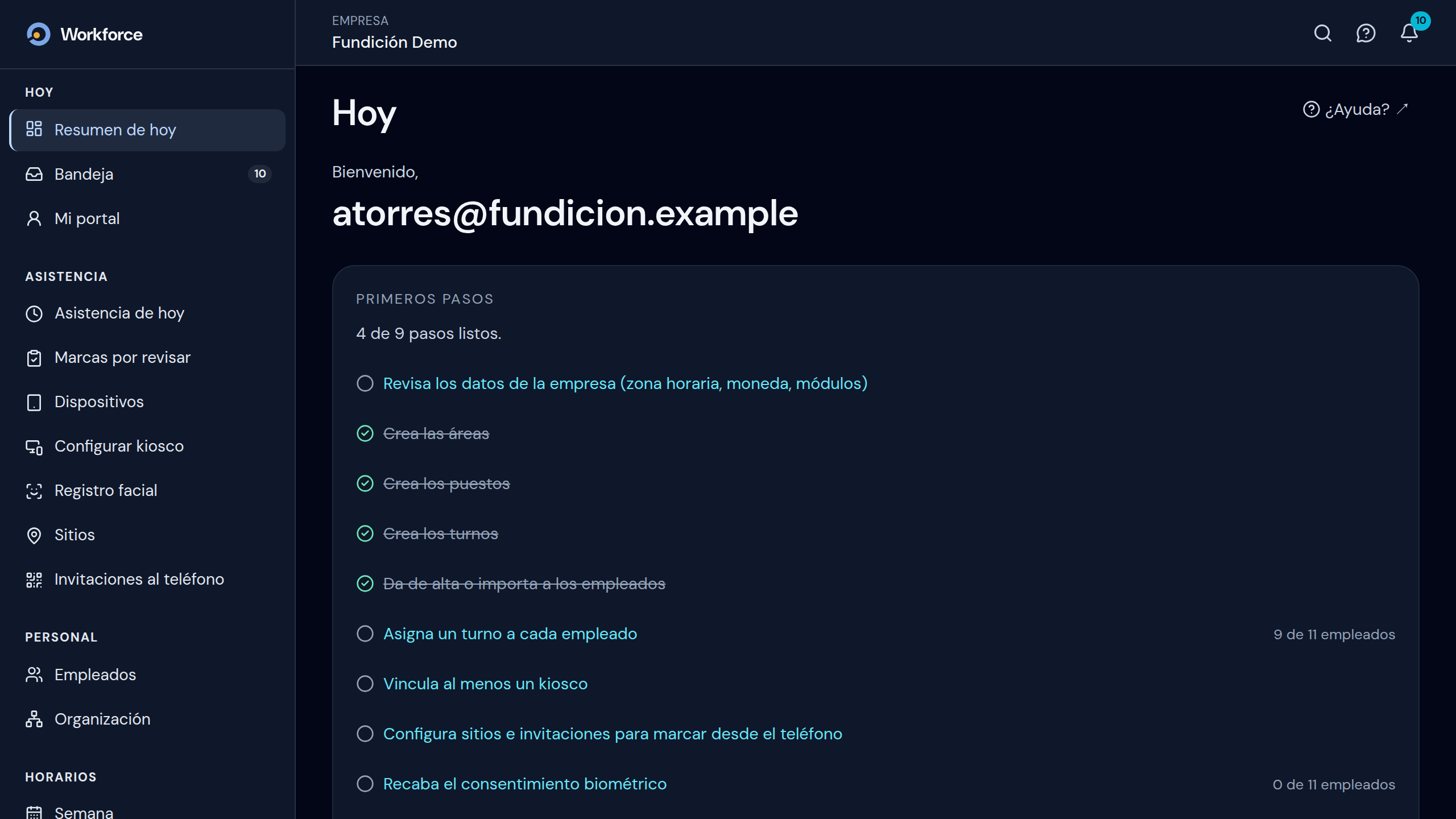
Hoy (Today)
Resumen de hoy (Today’s summary), the Bandeja (Inbox) with what awaits your decision, and Mi portal (My portal).
Asistencia (Attendance)
Asistencia de hoy (Today’s attendance), Marcas por revisar (Records to review), the devices and the kiosk.
Personal y Horarios (Staff and Schedules)
Empleados (Employees) and Organización. The Semana (Week) schedules, the Plantillas semanales (Weekly templates) and the Rotaciones (Rotations).
Ausencias (Absences)
Absence Solicitudes (Requests) and Suplencias (Cover assignments).
Seguridad (Security)
The Caseta (Gatehouse) and the Visitantes (Visitors).
Reportes y Administración (Reports and Administration)
Reportes de personal (Staff reports) and Nómina. Miembros (Members), Bitácora de auditoría (Audit log) and Configuración (Settings).